Create classes manually if your school has not added DataClassroom as an external tool in your LMS (Canvas, Schoology, Clever, Google Classroom, Classlink, etc.)
Create the new class
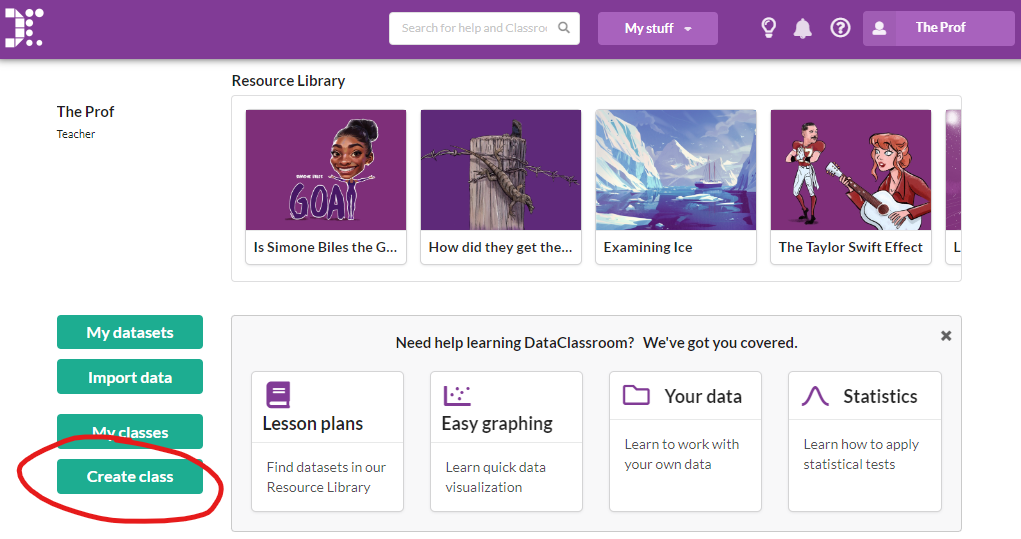
From your account dashboard, find the Create Class button on the left side of your screen.
You will see the class creation dialog. Fill out the name, description (optional), and choose a common class password:
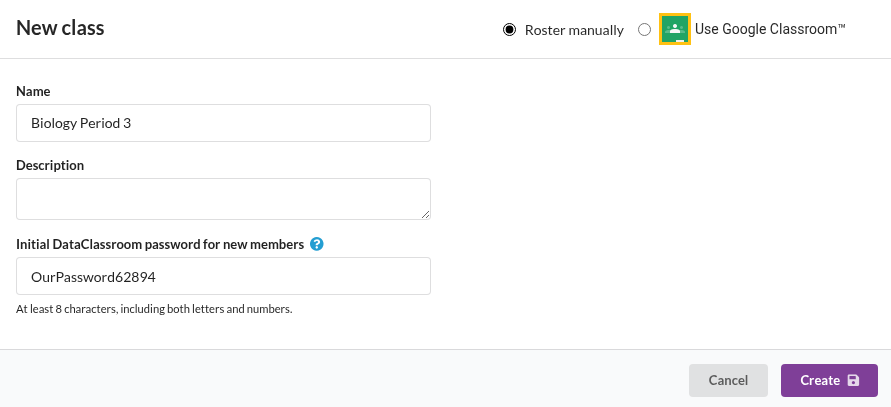
Choose a suitable password. Any students new to DataClassroom that get accounts created by joining your class will have this as their initial password. They can change their password after logging in for the first time.
Then click Create.
Inviting members to your class
You will see the Invite Members dialog.
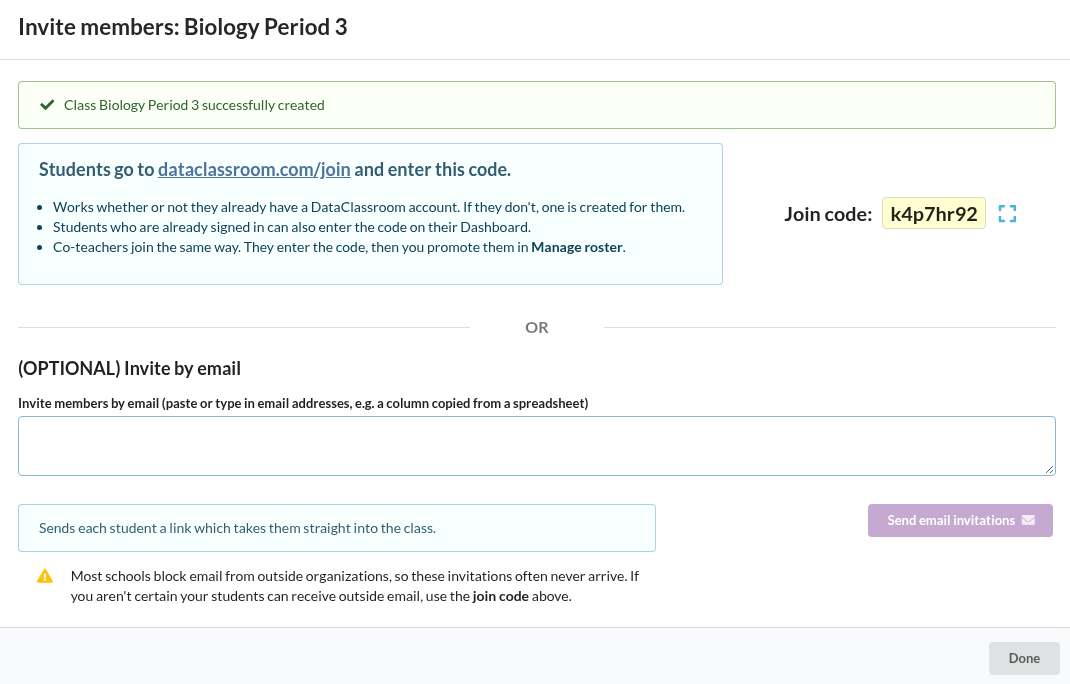
You have two options:
- Ask them to use the Join code
- Invite them by email address
Using Join Codes
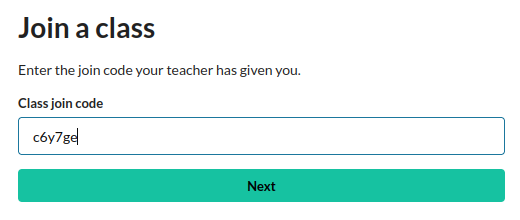
Whether or not they have an account: Browse to dataclassroom.com/join, where they can type in their join code, their name and their email address. If they don't have an account, one will be created, and they will automatically become a member of your class.
If they DO have an existing account: They can:
- log in to DataClassroom, and
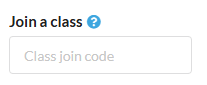
- type the join code into the box on their Dashboard.
Inviting by email
This only works if the students' email accounts can receive external emails. This is often not the case in K-12 environments.
Clicking Send email invitations sends emails to each invited member. With the link in the email, they will be able to create an account and join the class.
Managing the roster: joins and invites
Students that have used the join code will be highlighted with a red dot in the manage roster dialog for the class, until you either OK them or Remove (in case they added themselves by mistake).
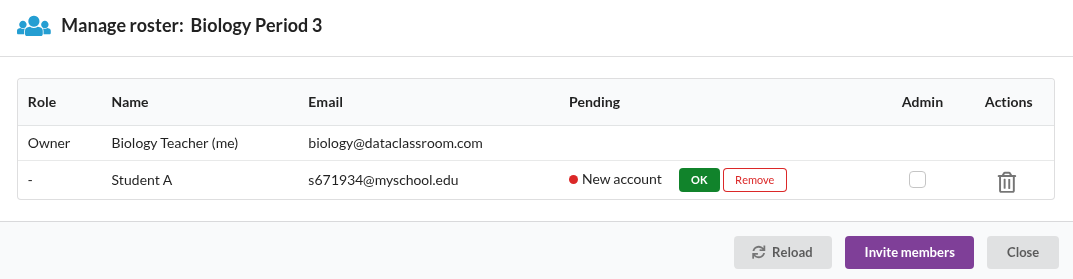
The dialog will also show you any pending email invitations as a blue dot. You can cancel them here.
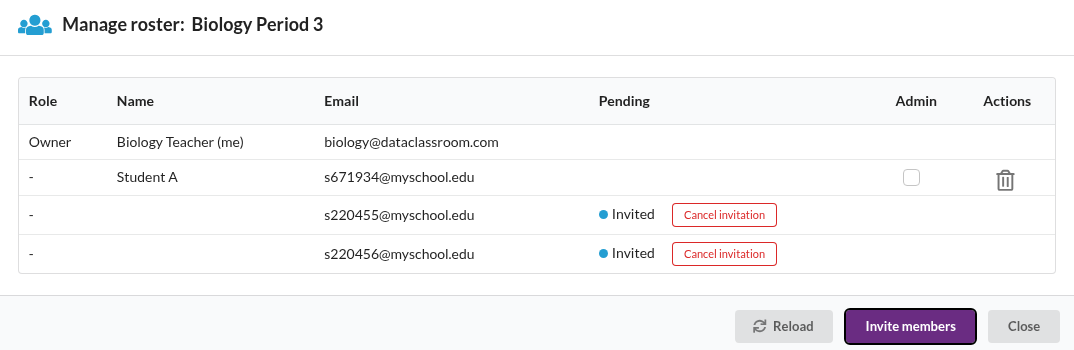
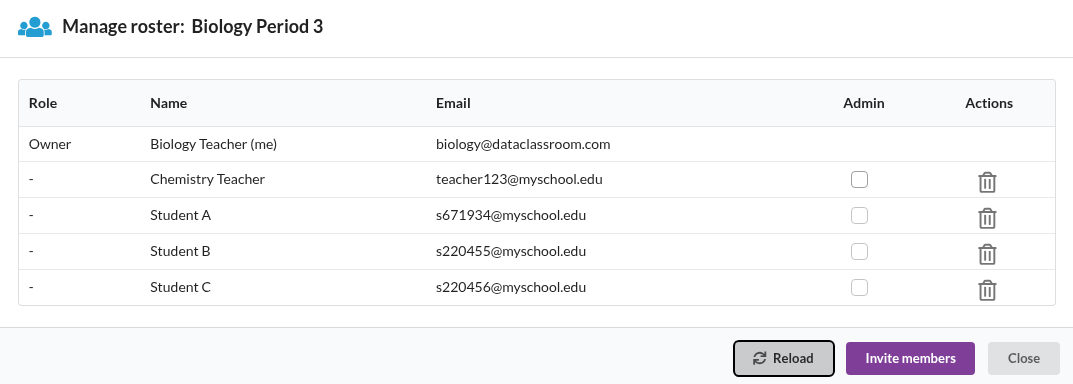
Once everyone has been OK'ed, you can see all the members in the list. This is also where you can delete a member.
Managing class admins or co-teachers
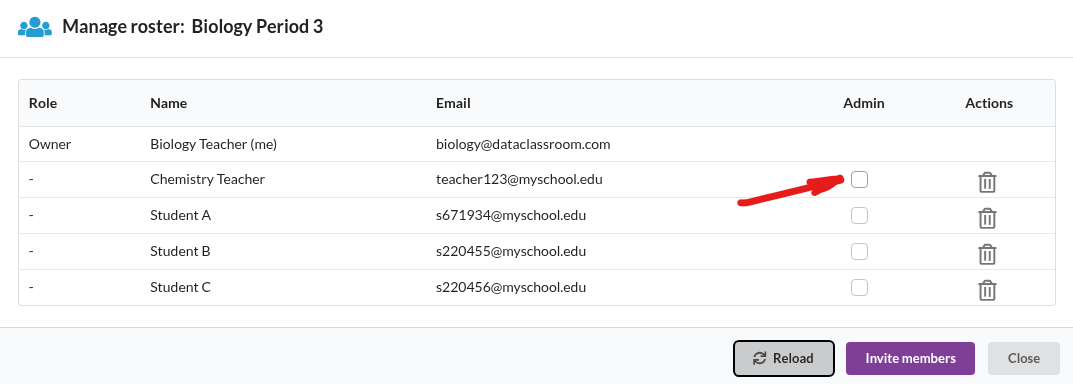
To add a co-teacher, first invite them as a member of the class. Once they have joined, you can select them to be an "admin" who will also be able to manage class members, share datasets with the class, etc. Only Teacher Accounts can be admins.